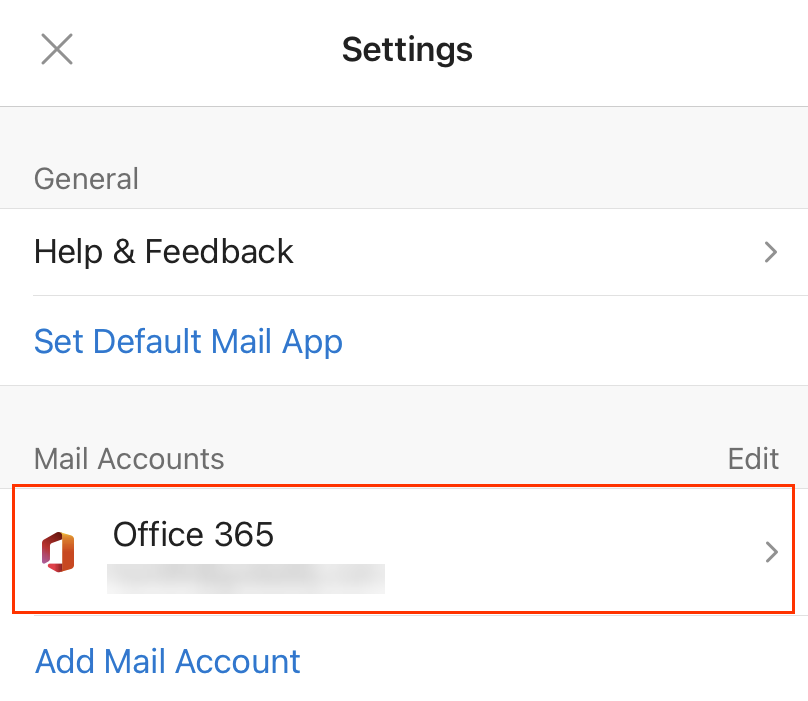

Add my Microsoft 365 email to Outlook (Windows)
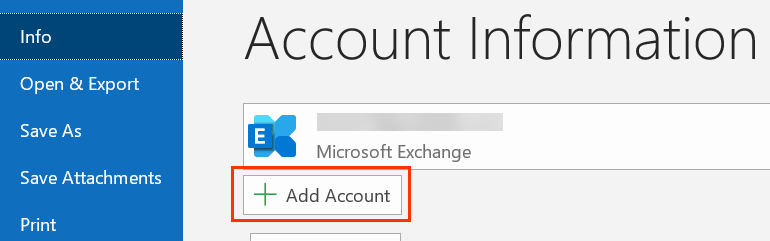
- Open Outlook on your desktop.
- Select File, and then select + Add Account.
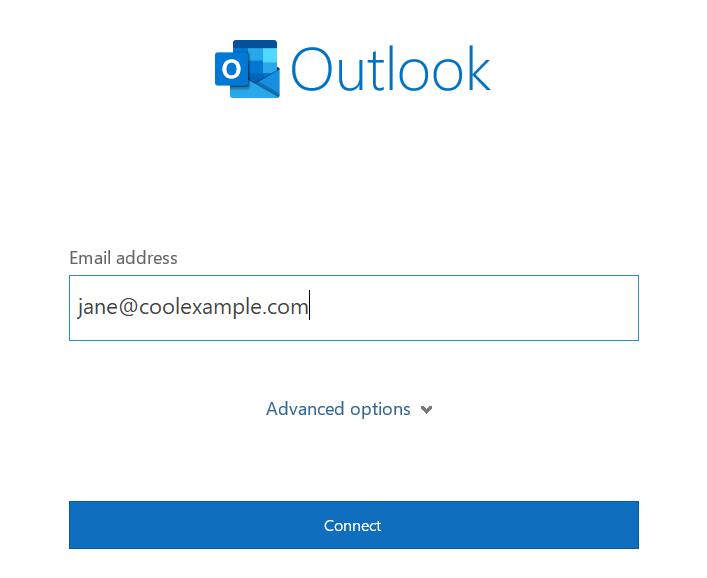
If you haven’t opened Outlook before, you’ll see a welcome screen. - Enter your Microsoft 365 Email address and select Connect.
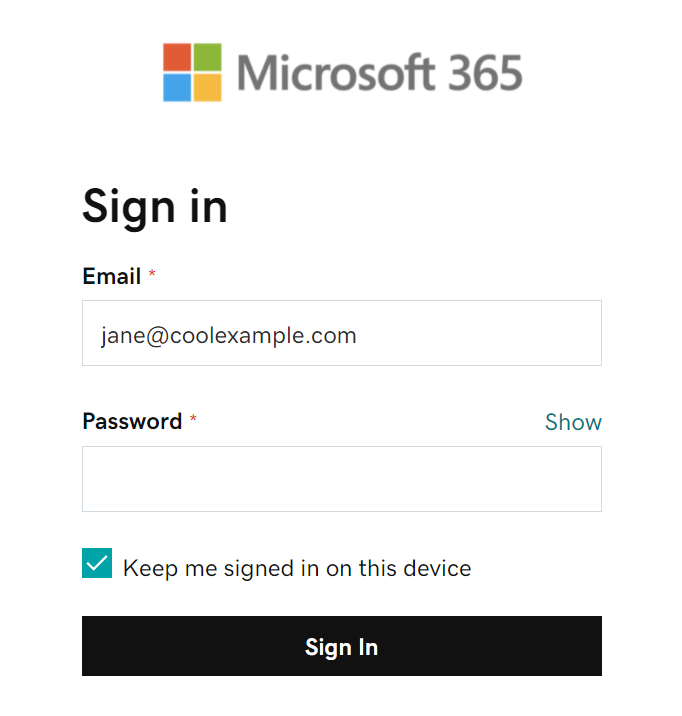
- Enter your Microsoft 365 Password and select Sign In. If asked, choose if you want to use this account everywhere on your device.
- If your admin enabled multi-factor authentication (MFA), verify your account or set up the Authenticator app.
- Once Outlook shows that the email was added, select Done.
Required: Before continuing, make sure you have the Outlook app. To download Outlook, use your phone’s camera to scan this QR code.

- Open Outlook. (If you just downloaded the app, tap Get started, choose your preferences, and then go to step 4.)
- Tap Menu, then
 Settings.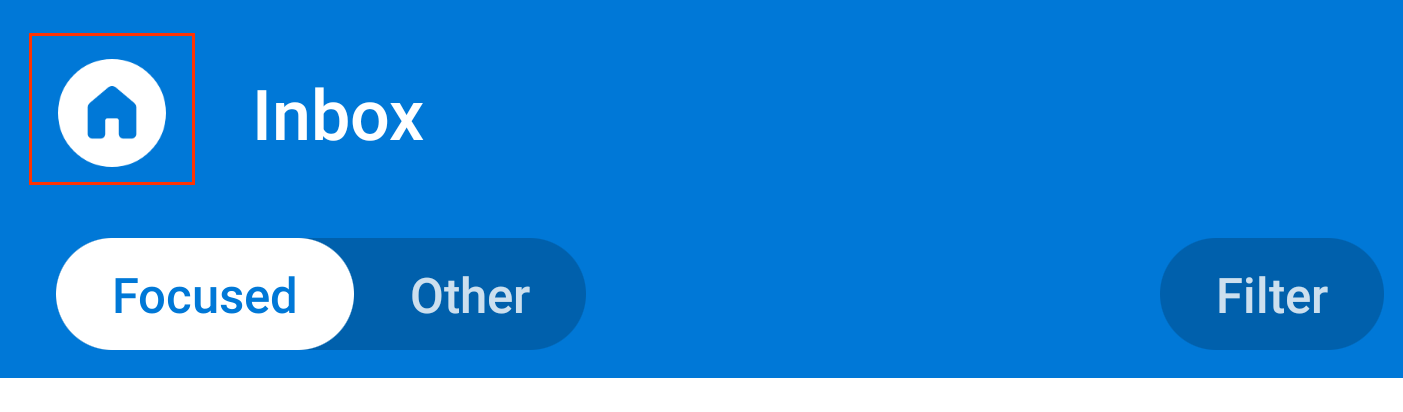
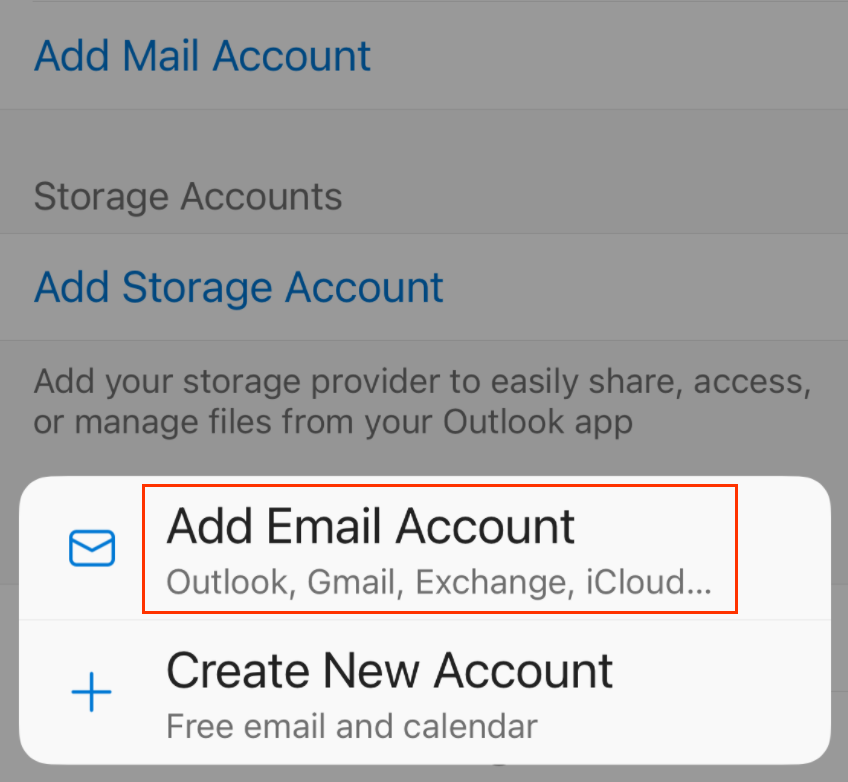
- Tap Add Mail Account, then Add Email Account.
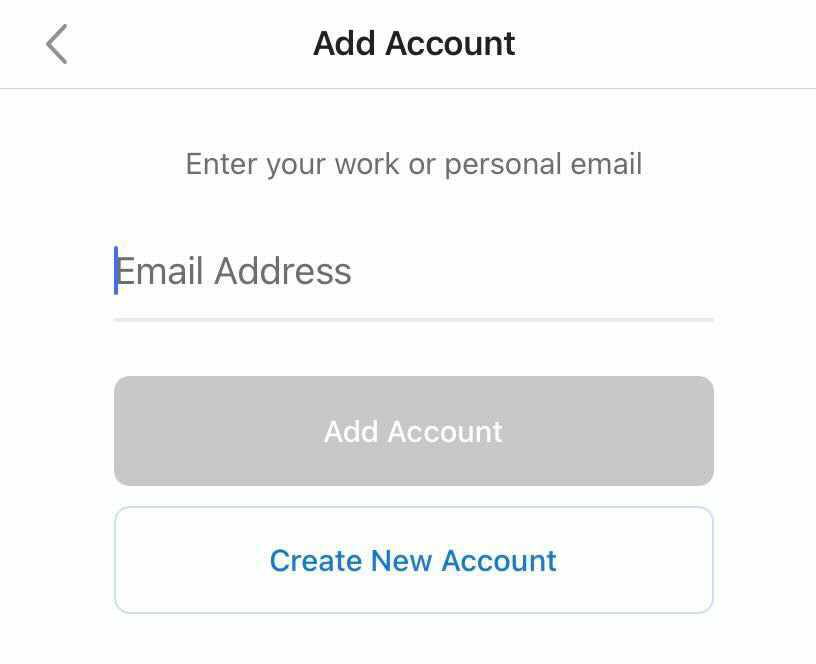
- Enter your Microsoft 365 email address, and then tap Add Account.
- If your admin enabled multi-factor authentication (MFA), verify your account or set up the Authenticator app.
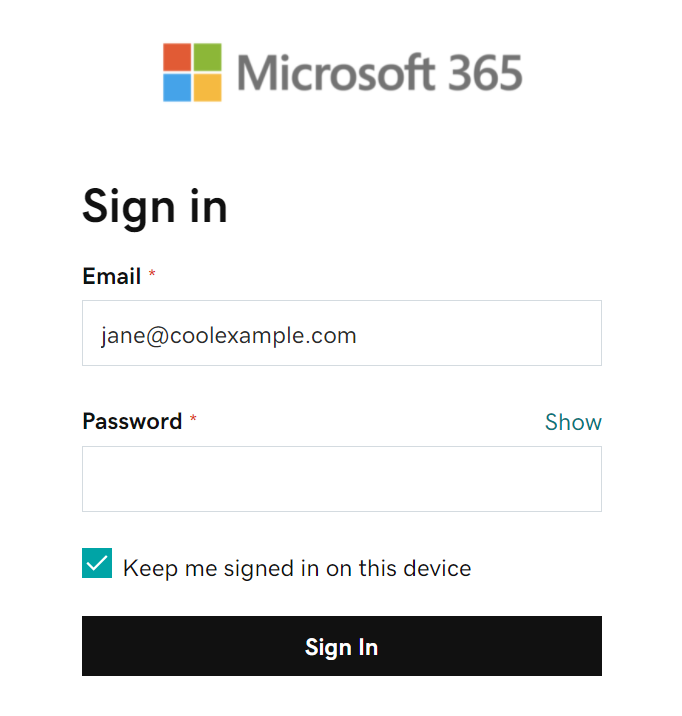
- Enter your Microsoft 365 password, and then tap Sign In. (You might need to choose your account type as Work or school, not Personal, to continue.)
- Your Microsoft 365 account will show in Settings. Go to your Inbox to check your email.